How to Print Your Booked E-ticket on irctc.co.in Website?
You can print your e-ticket on irctc.co.in any time; there is no any restriction to print E-tickets.
Note: If you have IRCTC Ticket SMS, sending by IRCTC directly than No need take printout with you as per irctc rules.
The eticket contains all the information about your boarding point, reservation point, time of departure, date of departure and arrival time also.
Booking an Indian Railway e-ticket Online through IRCTC very easy and through this user save too much time. Once the railway e-ticket is booked, you will be required to print it now or later, You have to show this print-out while journey except user don’t want to use sms method. You will also be required to show any one Original identity proof (with photo) such as driving license, voter id card, pan card, passport, ration card, Bank passbook with photo, School ID Card etc.
Follow the below steps and take your print out, If Still any problem Just post in Comments.
- Go to www.irctc.co.in/
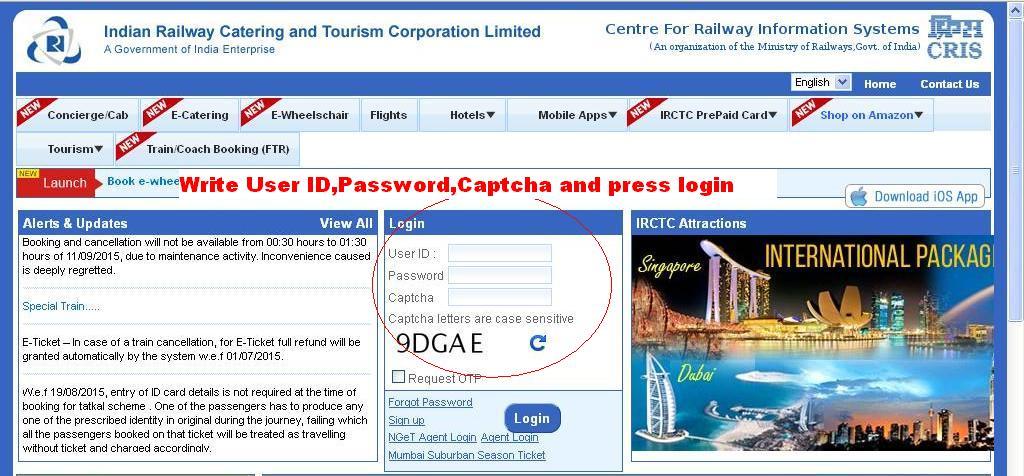
- Make/Write Your User Name, Password and Captcha properly then Click on Submit Button.
- After Click on Submit the Page/Browser Take You on Your Home Page Called User Home Page, Where you will able to See Following Option as Shown in the below Picture. On this Page You Can See Your Name and Other Option Like Booked Ticket History, Cancel Ticket etc.
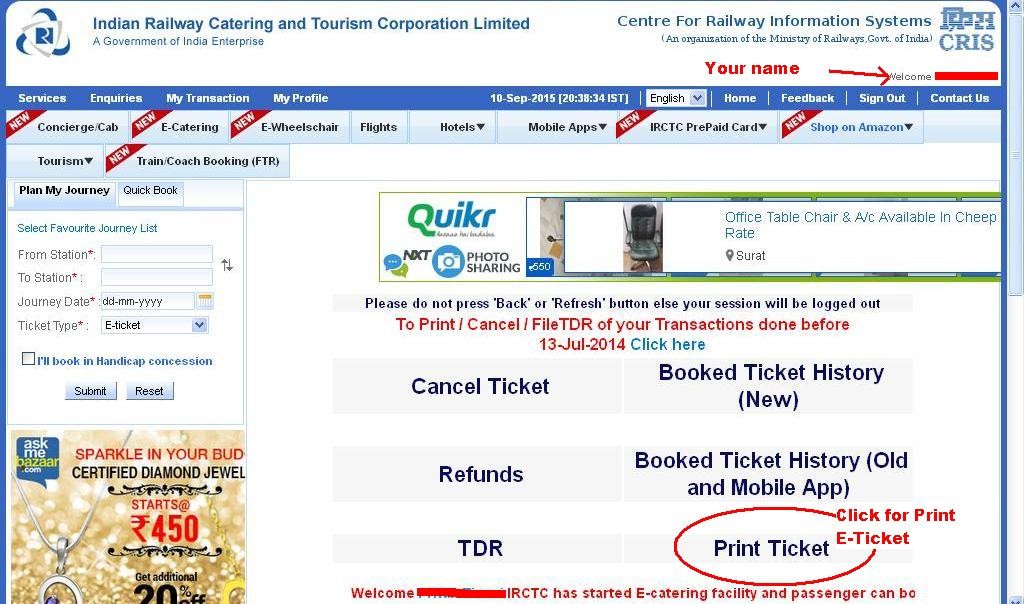
- Click On Print Ticket As Shown in Above Page.
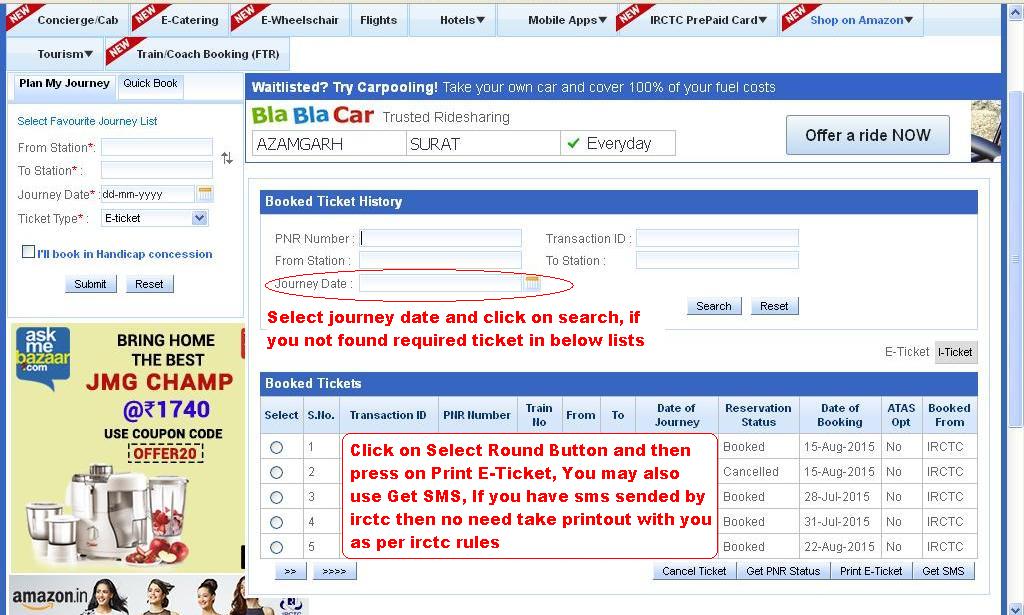
- Select Ticket by Click On Select Button Which you want to Print, If you unable to See your ticket in the Lists Then Select Journey Date and Search. Once You Will Your required Ticket Details Select It and Click On Print Button That’s It….
You can not print ticket without booked userid and password. Only PNR no is not enough to print ticket.
Yes You are Right, Without User ID and Password you can’t Reprint Ticket via EMAIL/IRCTC Account.
Thank you for your Reply…
You can go through Your Registered Email ID for Get Details.
My e-ticket is not coming on my email id … How can I mail to other
Check under your IRCTC account Profile Tab and Update your email ID Again.
You may also Print Ticket and save as PDF then you can attach with email ID and Send to Anyone.
Sir I have booked ticket by using irctc apps. But when I open by using browser it shown no booked history no pnr no. No any transaction I’d. What I do Sir.
Check Carefully there is Different Option for View/Print App Booking Tickets. Also good if you check ticket history using irctc Official App same as you your Ticket Booked App.
IF TICKET IS BOOKED BY ANOTHER PERSON THEN HOW TO PRINT TICKET
You can’t Reprint, You can ask them to send an email that you can print.
i need print out of my ticket i was traveld on 23/10/2016 now how can can i get it no copy is available in my mail
Check your Registered E-Mails with irctc account because each tickets auto send to your Registered Email ID by IRCTC.
I have followed all the four steps properly but after clicking the print option nothing happens.
Check the Plugins means may possible popup blocker active So Print Popup Can’t Open. Please Check properly.
Thank you Have Happy Journey.
what is the user name and password
Use Forget Password Option Just Beside Login Button to know your Password. If you also don’t know about user ID See your registered Email for that.
I booked a ticket from cyber cafe, he charged extra. But on ticket there is no print for extra charge. I claim to my office, he paid the printed ticket bill. How can i print extra charge on irctc online ticket?
In this kind of Case Claim Amount as Ticket Booking Agent Charges etc.
How to get eticket if it’s done by IRCTC mobile app
There is Option to Print Booked ticket from APP.
HOW CAN I PRINT MY TICKET WITHOUT TRANSACTION ID USNIG PNR NUMBER
Through Your Account Booking History Tab…
Hello, Cant we get printout if we have PNR and it booked through any agent, not through my own account?
Ask Agent to Give Print Out, Also enough if you have Booking Massage sender irctc.
i NEED PRINT OF BOOKED TICKET
After journey is over we are unable to get print of already booked ticket resulting inconvenience in claiming the reimbursement from the relevant department. Is there any remedy?.
Check the Mail ID Updated with this IRCTC Account, As after every booking auto email send with ticket printout/details to registered email ID.
IF TICKET IS BOOKED AT ANY OTHER AREA.. I HAD PNR NO N TRANSAC TION ID AND OTHER DETAILS BUT I CONT ABLE TO RE-PRINT MY TICKET WITHOUT LOGIN.. IF I LOGIN WITH MY ID IT SHOWS NOSUCH TRASACTION/PNR.. HOW SHOULD I GET IT… PLS REVIEW..
Make Sure you Booked ticket from Mobile App or From Irctc.co.in Website. Check once in both type.
Wish you Happy Journey.
I am booked tickets in irtc mobile app I am emailing. Ticket download
Unable to Understand What you Want to say.
If journey date is passed then how we print already booked ticket. When we click on e print ticket error has been occurred
No You Can not Print it but You can Get Printout as the Email Sent to your Email ID after every booking/Cancellation.
Pingback: All about Indian Railways IRCTC Waiting list E-Tickets - IRCTC NEWS
Whats is username and password
Which User and Password
Pingback: How to Print Your Booked Retiring Room Ticket again?